Showing posts with label Visual Design - Robin Ledger. Show all posts

Thursday, 26 March 2015

Term 2: Maya Session 8 and Assessment

This is our assessment task for our second term at UCA, we have been tasked with modelling an adolescent male with the assistance of turnaround concepts. We were provided with a previously set-up Maya project with the front and side view concepts of the character already in place and a mirrored cube in position to begin working on. 

I began with the feet, adding edge loops with the Insert Edge Loop tool sparingly (as and when I need it) so as to reduce the total number of triangles on the mesh, as per the brief we were provided we are to aim for around 8,000 triangles on the mesh.


The second image of each stage is the model as seen in a smooth view (3 on the keyboard)


From here I extruded the edges and scaled them in, once in position I extruded the edges again to start making the calves of the legs. The initial extrusion was to make the shape of the shoe which is a little thicker than the ankle.


Next I extruded the top edge of the leg above, pulled it up and extruded the edge again, scaled the edge out and once again extruded but now I pulled it back down to be level with the top of the leg I made above. This created the inside of the shorts and I could then extrude the edge out again to create the thin edges of the shorts and I could start to extrude up to create the thighs.


The next few images show an incorrect geometry for the groin of the model so after finishing the base model I went back to the groin to sort out the geometry where the edges coming up from the legs curve around and meet at the groin. This is so that during the rigging process after the model has been finished the geometry can be deformed accurately to how the human body moves in real life.


Here I began to pull the vertices of the thigh up so that an edge loop from the groin would rise up over the hip and back down around the back, this was done as the reference images of the human mesh show the edge loops/vertices rising around the thigh.


With the torso I continued the model until I got to the shoulders, at which point I used the scale tool to pull the vertices in to create the edge loops that circle the neck. But due to the model being mirrored instead of being one complete mesh at this point I had to pull the vertices in the middle at the separation so that I could merge the vertices later on.


To create the head I used a technique Robin showed us in class, create a poly cube and smooth it twice, this adds edge loops to the cube and turns it into a sphere shape. However the trick is the edge loops are now exactly how a human head mesh should be, radiating out in circles from ear to ear. Once the head and the hands were complete I combined the 2 halves of the model and merged all the vertices along the central split. After that I smoothed the model to 1 subdivision, creating a more organic model but raising the Tri count to over 8,000. 
So I started to remove unnecessary edged loops to reduce the Tri count eventually stop once I reached   just over 7,000.


Next I set about laying out the UV maps, I did this by (for example) selecting half the faces of the Torso, making a planar map of those faces and unfolding them. I would then repeat this for the other half of the faces; then I would select the edges that I didn't want to be exposed and used the Move and Sew UV edges tool, this connected my 2 planar maps for the torso and I could then unfold them again. Above in the UV texture editor image on the bottom left hand corner is my Planar map for the torso of my model.

With the Planar maps set and laid out to optimise the space I could move onto texturing, to do this I took a UV snapshot of the UV texture editor and saved it as a TGA file which I opened up in Photoshop to begin painting the textures on.


I made use of Photoshop to texture as I could copy the symbol on the chest of the reference image and place directly onto the model without hassle of making it from scratch.


And here is my finished model, I am really happy with how this turned out, I applied all the textures needed and they too came out well. The things I would improve on next time would be working on those laces as they were a hassle to paint on and if given the chance I would try to add some more edge loops onto the face as I wasn't able to shape the face in detail and that can be noticeable. But I believe I did well on this and look forward for more.

Something to note as an after thought, whilst looking at the previous versions I saved for security I realised that the geometry on the head was better. At some point after smoothing the model and trying to reduce the total number of Tris to below 8,000 I seem to have deleted an edge loop on the face, which is why I find the chin (at least) to be a bit off, unfortunate but I still like the outcome.


Term 2: Maya Session 6: T-rex Modelling Part 3

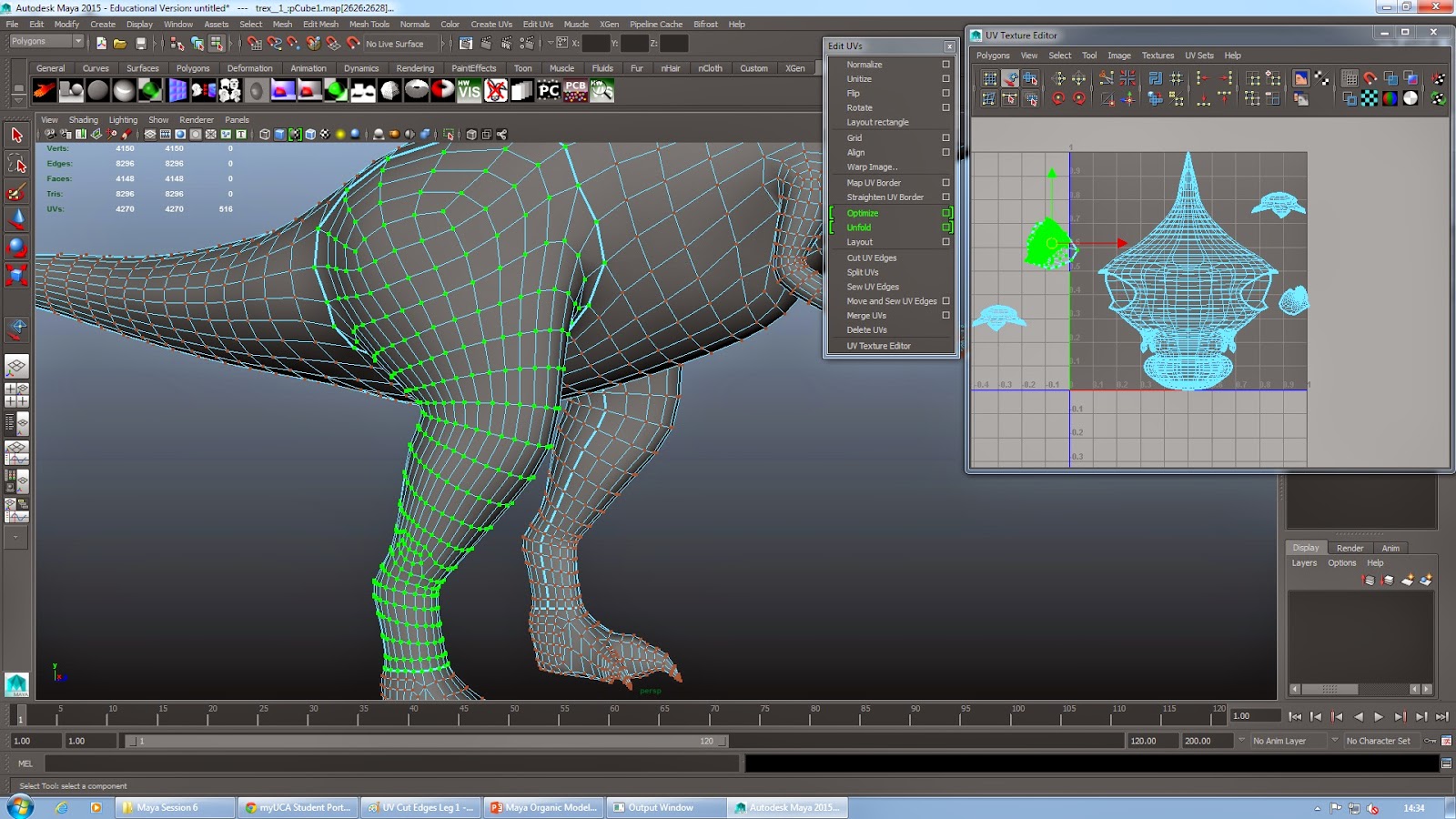
For the final session on the t-rex we were taught how to cut UV edges. First we selected the whole model and created a Planar map, once the planar map was set we began to cut.


In this example we selected the edges around the top of the thigh, about where one would cut it off to leave a smooth curve behind, and used  Edit UVs > Cut UV Edges Tool. After that we selected the edge loop around the ankle and again cut the UV edge. Finally we selected the middle edge loop on the inside of the leg and cut that.
With that done we selected the vertices on the leg and used the expand selection tool, this highlighted all the vertices within those cut edges and we could then go into the UV texture editor and create a Planar map of that leg, once made we could then unfold it to give us the UV texture map for that leg ready for painting in Photoshop.


We continued to so this for the rest of the body, separating the Tail, Head, Arms, Fingers, Toes, Legs and Body with the Cut UV Edges tool which made our model ready for texturing and prepared us for our assessment task.

Term 2: Maya Session 5: T-rex Modelling Part 2


I found that the model I made in last week's session wasn't the best quality model so to continue with the session I used the model Robin provided to us. This week we were continuing to build the t-rex model using the box method but with the head and body done we moved onto the arms and legs


We started by deleting the faces around the thigh and extruding the edges, using the scale tool to produce the correct mesh geometry of the thigh, this is for animating purposes as the correct geometry allows the model to be deformed without issue, although that is not something we are going to be taught thus far, this exercise is for the modelling and later on UV texture editing only.


The arms we created in the same way as the legs, starting out by deleting the faces where the arm would be and extruding the edges.

This is my finished model of the t-rex, I like how it turned out and I managed to do it with relatively few tris created.


Term 2: Maya Session 4: T-rex Modelling part 1

                 
For this week's session in Maya we started to learn how to model using the box method, a method whereby the modeller starts simply with a poly cube and begins to model the shape of whatever he or she may be modelling by adding edge loops only as and when they are needed, this reduces the poly count and tri count allowing for smoothing later on to create a more organic model.


Monday, 19 January 2015

Term 2: Maya Session/ H/w 1: USS Enterprise

For this weeks session we were tasked with building the physical model of the USS Enterprise a project which would be completed as H/w.


To start we were shown to take 3 poly planes and attach a blinn to them, each blinn would have a texture file added to them, a file of the model plans of the Enterprise itself.


To begin the fuselage of the model I created a poly cube, with it selected I pressed the '3' key which turned it into the shape in the image above.


I selected the 'front' face and extruded it until it was aligned with the plans of the Enterprise and began to add edges through the insert edge loop tool from which I could begin modelling the fuselage into shape.


Here is the fuselage in shape and aligned with the plans surrounding the model.


Now because the model is still essentially a cube and by pressing '1' it would return to it's original shape I needed to reset the model so that it retained it shape even when I pressed '1'. To do this I used the smooth tool which retained the models shape but now I had the issue of too many edges and vertices on the model creating too many triangles. Thus using CTRL Delete I began to remove the edges and vertices not important to the overall shape.


The fuselage complete I turned my attention to the other parts of the model. Starting with a basic shape I made the connecting joint between the fuselage and the bridge with a poly cube. I entered 'Right view' and made all objects transparent, this allowed me to see the plans in the background and model the cube into shape from the foreground.

Next was the radar dish. Using the curve tool I drew half the outline of the radar dish (following the side plan of the model) and fleshed it out with the surfaces > revolve function.

Next I made the 2 joints connecting the fuselage to the engines, following the plans the same way I made the features thus far.


The engine cylinders were made with a single poly cube which I modelled the same way I modelled the fuselage, by setting the cube with the '3' key and using the insert edge loop tool to deform the shape using the plans as my guidelines.


The last portion I had to make was the bridge. This was made using a poly cylinder which had 24 subdivisions protruding from the centre to form the circle (the same number as the plans show) and 6 subdivision caps. By following the plan from the side view I began by using the extrude tool to pull out the extrusions on the bridges geometry and selecting each individual edge on the bottom face and using the scale tool to equally pull them into a cone shape. I repeated this on the bottom face until the geometry matched the plan and to create the bottom peak I simply pulled all the edges together until they passed by one another and pulling back to just before that moment to create that bottom peak.

I repeated this process for the top half of the bridge, except I morphed the edges to create a more oval shape for the top extrusions like the plans show. This created an interesting accident when trying to create the final 2 extrusions which would form the top of the bridge in that because of the positions of the subdivisions when I extruded it created this small tube running down the back. Although it isn't in the design I liked it as it showed a visible placement of an elevator shaft so I kept it in.


Here is my final model, there is one thing missing here (which I shall address) and that is 2 tube extensions from the engines.
Apart from that I really like how this came out, but to critique my own work I would say that the circular ports on the front of the fuselage need to be adjusted as they do not match the plans brilliantly and that the 2 peaks of the bridge, while I really do like how it turned out, are just that peaks. According to the plans they have a smooth curve rather than a point.